Documentation
Design layouts: styles and presets
Design RDLC layouts with the Styler. Use styles, targeted filters, analysis and reusable presets for consistent reports.
Styles
Open Styles in the preview toolbar to apply repeatable changes to the selected layout. Styles can also revise existing reports: apply template elements, normalise dimensions or introduce consistent fonts and formats after manual editing. Available operations vary between RDLC and Word.
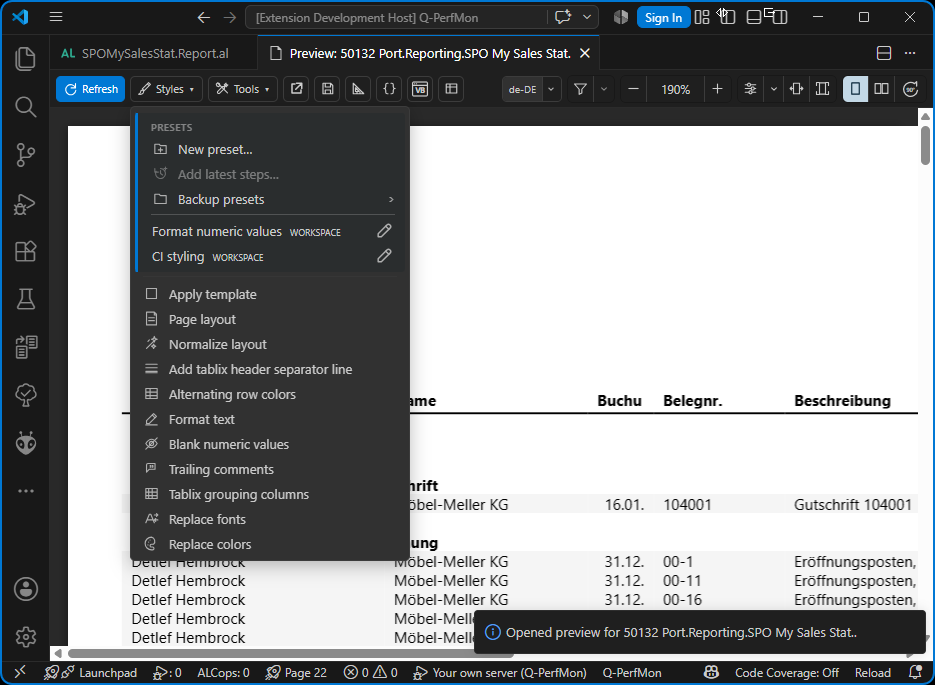
Analyse a style before applying it. ALRC: Undo Last Preview Style reverses the last change; automatic backups can also be created for operations. Keep normal project backups or commits before extensive modifications.
Individual topics
- Apply template
Transfer selected template elements to an existing RDLC layout.
- Page layout
Adjust your report's paper size, orientation, margins and dimensions.
- Normalize layout
Standardise dimensions, padding and formatting in an RDLC layout.
- Add tablix header separator line
Add spacing and a separator beneath the tablix header.
- Tablix grouping columns
Add or remove grouping columns in an existing RDLC tablix.
- Alternating row colors
Apply alternating background colours to detail rows.
- Format text
Set text colour, background and font weight for selected elements.
- Format text by value
Format RDLC elements according to their rendered value.
- Blank numeric values
Hide selected numeric values with the RDLC blank functions.
- Trailing comments
Protect RDLC expressions against unwanted changes by the designer.
- Replace fonts
Replace selected font families, sizes and weights.
- Replace colors
Replace colours in the layout and in RDLC expressions.
- Filters and semantic roles
Restrict styles to matching elements and use semantic field roles.
- Style preview: Analyze
Review the affected elements before applying a style.
- Create and manage presets
Save, combine and back up reusable style steps.